

How to create website icons in any color you want
For the latest template that I released, Basic Profile, I made an alternate version which included a set of icons that matched the colorscheme of the template. Since one of the most common modifications that template users want to do is to change the link colors, I want to show you how you can modify the icons to match any color you want your Basic Profile-based website to have.
The icon set: Iconza.com
The icons used in the Basic Profile (alt) template are taken from iconza.com, which offers a set of 119 icons that can be customized using a color selection tool and then downloaded and used with a Creative Commons Attribution license (meaning that a to iconza.com is required if you use their icons). To customize the icon set, start by going to the iconza.com website by clicking the image below.

Step 1: Select your color
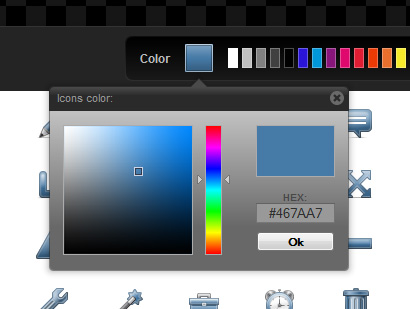
The first thing you will see is the set of icons in a default color. You can choose between a number of colors, or use the color selection box to provide a color using a hexadecimal value. For the Basic Profile (alt) template I used #239a23 which creates green icons. If you want to create a set of blue icons, for example using my classic blue color from the andreas01 template, click the red box above the icons beside the “Color” label and enter the hex value #467aa7.
Step 2: Download the icon set
Once you have selected a color, review the icons to make sure that they look nice with the color you have selected and the click the “Download all icons” button below the icons.
Step 3: Extract the .zip and edit the CSS
When the download finishes, extract the .zip you just downloaded to the /images/icons/ folder of the Basic Profile (alt) template to overwrite the icon set that is included with the template. If you have edited the link colors in the basic-profile-alt.css file and changed the default color (#239a23) to #467aa7, you can now review the changes in your web browser. If you haven’t edited the CSS yet, the changes needed to be made in the CSS are on the following two lines:
a {color:#239a23; text-decoration:none;}
h1 a {color:#239a23; text-transform:none;}
Edit the color value to make the lines look like this:
a {color:#467aa7; text-decoration:none;}
h1 a {color:#467aa7; text-transform:none;}
…and you are done.
Step 4: Review the changes
The template should now look like this:

As with the icon set included by default, you can modify what images are shown to each menu option by editing the .icon classes in the CSS, and the corresponding classes on each menu list item. You may also want to replace the default logo with an image of your own that matches the link and icon colors. If you want to know more about creating a custom logo for the Basic Profile template, post a comment and I may write a separate post on that topic.
Thanks to iconza.com for the excellent icons and the great customization tool, and for allowing site owners to use the icon set for free!

This article was written by Andreas Viklund
Web designer, writer and the creative engine behind this website. Author of most of the free website templates, along with some of the WordPress themes.
9 comments:
thanks i have inspiration after read your articles
Muy bueno el servicio de Iconza, no lo conocía y voy a empezar a utilizarlo frecuentemente. Ah! Muy bonita Basic Profile (alt).
Wow, very nice find. Iconza is sure going to make my life sooo much easier. No more messing with photoshop or illustrator to change icons. Thanks for the share!
I want to thank you! As usual it was VERY useful.
very professional.
woow, omg I never seen that before, even I read some up to date web-dev blogs. Thanks for that priceless link!
thanks for this great tutorial, ıcan make my own icons instead of downloading the same icons again and again
OMG! Wish I could do all that. Just learning but sooo glad I found this site! Thank you for helping us novices.
I cant belive its so easy to do, thanks very good and clean tutorial u save my lot of time